
Your Profile Section Guide in The TTR Pay Dashboard
The Profile section in your TTR Pay account is where you review and update important merchant information, including your unique credentials, business details, and security settings. In this guide, we’ll show you how to navigate to your Profile, explain each key field, and highlight what you need to manage properly.
Locate the “Profile” Section
To access your Profile:
- Log in to your TTR Pay dashboard.
- On the left-side menu, click My Account to expand it.
- Click Profile (highlighted in green in the sidebar).
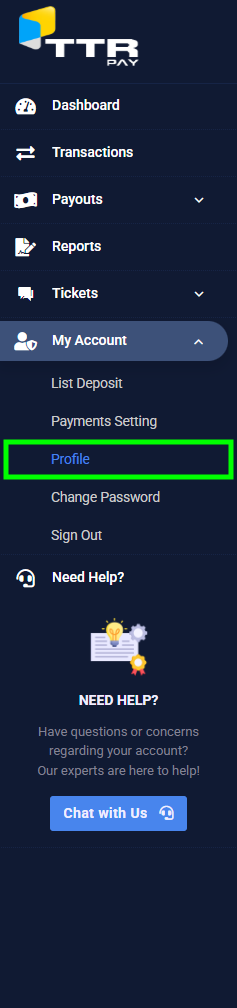
Once clicked, you’ll be directed to the Profile page displaying your account’s merchant information, security options, and merchant key.
Understanding the Profile Page Layout
On the Profile page, you will see two major parts:
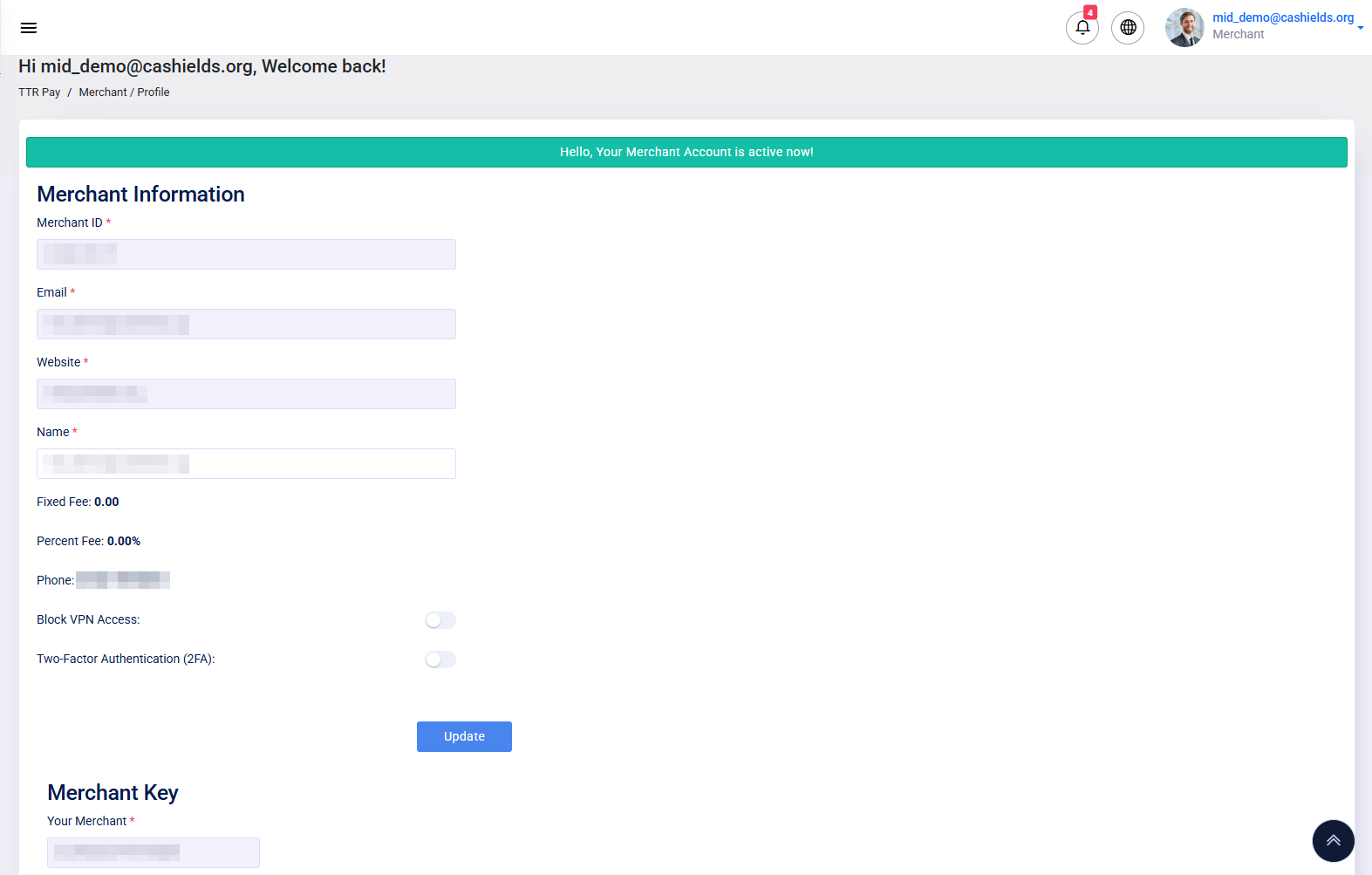
Merchant Information Section (Information You Must Provide)
As a merchant, you are required to fill out or verify the following fields:
- Email:
Your main business email for contact, notifications, and system communications. Ensure it is correct and active. - Website:
The official website of your business. Enter a valid domain (e.g.,example.com) to complete your merchant profile. - Name:
Your business name or personal merchant name.
This name helps identify you within TTR Pay’s system and in communications. - Phone: Your registered phone number.
📝 Tip: Always ensure that your Email, Website, and Name are entered correctly to avoid verification issues or payment delays.
Merchant ID and Merchant Key Section (Provided by TTR Pay)
After your account is activated, TTR Pay automatically assigns your:
- Merchant ID:
A unique number used to identify your merchant account. It is essential for all internal records and transaction tracking between you and TTR Pay.
→ You do not need to edit or change this ID. - Merchant Key:
A secure, unique alphanumeric key used to authenticate your payment transactions.
→ Keep your Merchant Key safe. It must not be shared publicly. It is crucial for integrating payments between your website/app and TTR Pay.
✅ Important Notice: You don’t create or modify the Merchant ID and Merchant Key yourself. They are provided upon successful account activation.
Other Fields (Automatic Information)
These fields are displayed for your reference:
- Fixed Fee: The fixed transaction fee assigned to your account.
- Percent Fee: The percentage fee charged per transaction.
📝 Note: These areset by TTR Pay during onboarding and are not editable from the Profile page. Each transaction WILL INCLUDE BOTH the Fixed Fee and Percent Fee.
Security Settings on Profile
At the bottom of the Profile page, you will find two important security options:
Block VPN Access:
Enabling this will block users (including yourself) from accessing your account while using a VPN.
➔ Helps prevent unauthorized or anonymous access attempts.
Two-Factor Authentication (2FA):
Enabling 2FA adds an extra layer of protection by requiring a verification code (in addition to your password) when logging in.
➔ Strongly recommended to protect your account.
🔒 Best practice: We recommend you TURN ON 2FA for better account security. (You can toggle these settings by clicking the small switch next to each option.)
How to Update Your Profile Information
If you make any changes:
- Fill in or update your Email, Website, Name, or adjust the security settings.
- Click the Update button at the bottom of the page.
✅ A success message will confirm that your changes have been saved.
Support Tip
- If you have any issues with your Merchant ID or Merchant Key, contact our support team for assistance.
- If you experience difficulties updating your Email, Website, Name, or any other profile information, please reach out to our support team for help.
- If you need help enabling or troubleshooting Two-Factor Authentication (2FA), our support team can guide you through the process.
Remember, you can always contact TTR Pay Support for any other profile-related questions or concerns.
Leave a Reply