
‘Payments Setting’ Section Guide in the TTR Pay Dashboard
Welcome to TTR Pay! In this simple tutorial, we’ll show you how to set up and manage your payment methods using the Payments Setting section of your TTR Pay dashboard. You’ll learn how to add a PayPal account, a bank account, a USDT TRC20 wallet, or a Bitcoin wallet so you can receive payments. We will also cover how to review your added payment methods and fix common mistakes. Let’s get started.
Locate the ‘Payments Setting’ Section
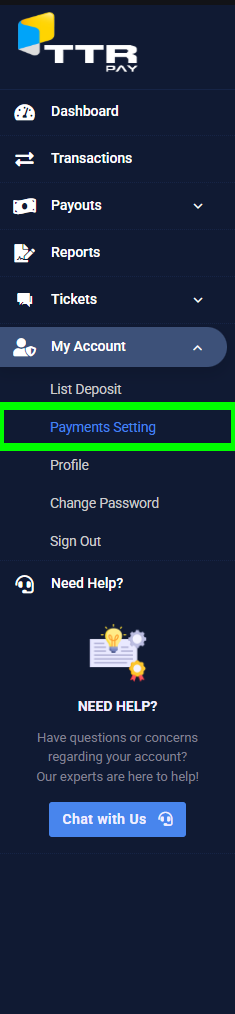
First, you’ll need to find the Payments Setting page in your TTR Pay dashboard. Here’s how to navigate to it:
- Log in to TTR Pay: Log in to your TTR Pay account and go to your dashboard (the main screen after login).
- Open My Account menu: Look at the menu on the left side of the dashboard. Click on My Account to expand the account options.
- Click Payments Setting: Under the My Account menu, click on Payments Setting. This will open the Payments Setting page where you can manage payment methods.
Payments Setting methods.
The image above highlights the Payments Setting option in the TTR Pay dashboard menu (marked in green). You can find it under the My Account section on the left side. Once you click Payments Setting, you will be taken to the page where you can add or manage your payment methods. This is where you’ll set up how you want to get paid on TTR Pay.
Adding a New Payment Method
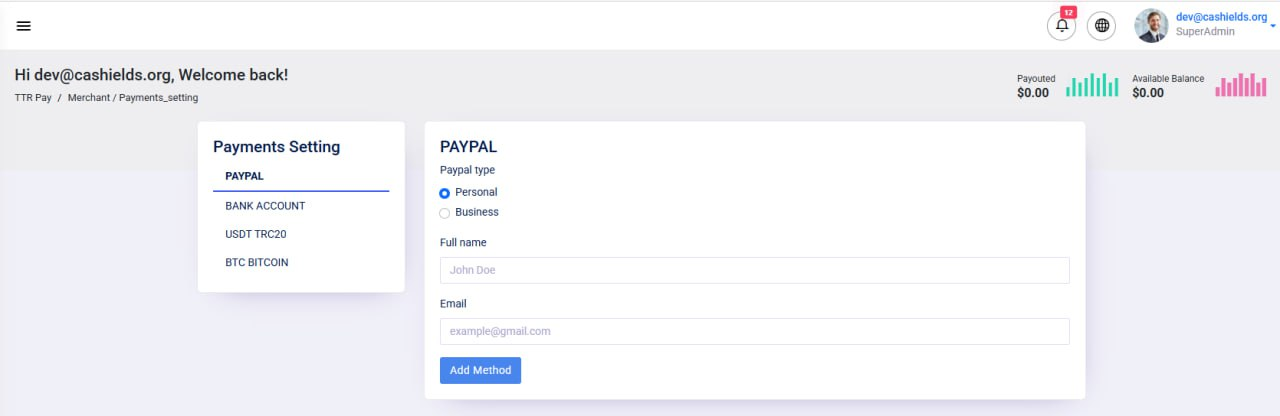
On the Payments Setting page, you can add different types of payment methods. There are four options available: PayPal, Bank Account, USDT TRC20, and BTC Bitcoin. You can add one of each type if you want, or just the ones you plan to use. To add a new payment method, first click on the method type on the left side of the Payments Setting page, then fill in the form on the right side. Once you fill in the required details, click the Add Method button to save it.
Let’s go through each type of payment method and what information you need to provide:
PayPal
The PayPal section allows you to link your PayPal account to TTR Pay. When you select PayPal on the left, the form on the right will ask for your PayPal type, Full Name, and Email. Choose the appropriate account type (Personal or Business) based on your PayPal account, enter your full name exactly as it appears on your PayPal account, and then type in the email address associated with your PayPal account. Once all the fields are filled in, click Add Method to save your PayPal details.
Bank Account
The Bank Account section allows you to add your bank details so TTR Pay can send payments directly to your bank account. When you select Bank Account on the left, the form will ask for Bank Holder Name, Bank Number, and Bank Name. Enter the name of the account holder (your name as it appears on the bank account), your bank account number, and the name of your bank. After entering these details, click Add Method to save your bank account information.
USDT TRC20
The USDT TRC20 section is for adding a Tether (USDT) cryptocurrency wallet address on the TRON network (TRC20). Select USDT TRC20 on the left, and the form will have a field for your Wallet Address. Copy and paste your USDT TRC20 wallet address (a long string of letters and numbers — this is the address where TTR Pay will send your USDT payments) into the field. Then click Add Method to save your USDT wallet address.
BTC Bitcoin
The BTC Bitcoin section is for adding your Bitcoin wallet address. Click BTC Bitcoin on the left side, and the form will show a single field for the Wallet Address. Enter your Bitcoin wallet address (a long string of letters and numbers — this is the address where TTR Pay will send your Bitcoin payments) into the field. After that, click Add Method to save your Bitcoin address.
Viewing and Managing Your Payment Methods
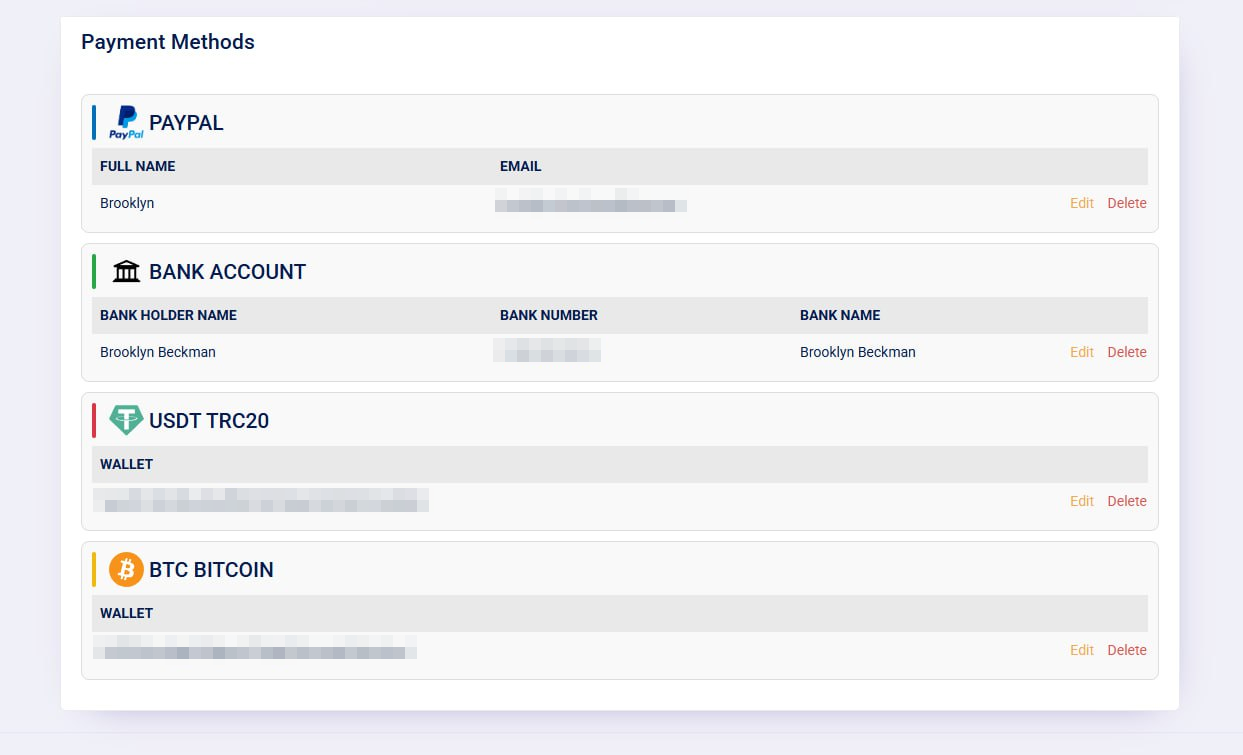
Once you’ve added one or more payment methods, they will appear listed under the Payment Methods section on the Payments Setting page. Each method you added will be displayed with its details (for example, you’ll see the name and email for a PayPal entry, or the wallet address for a crypto entry). In the image above, you can see examples of PayPal, Bank Account, USDT TRC20, and BTC Bitcoin entries. Next to each entry, you’ll find an Edit and Delete option for that payment method. This list lets you easily review your payment methods and make changes if needed.
- Edit: Click Edit if you need to update the details of a payment method. For example, you might want to change your PayPal email or update your bank account info. When you click Edit, the information for that method will appear in the form (on the right side of the page) so you can modify it. Make your changes, then save the update (for instance, the Add Method button might turn into a Save or Update button for edits).
- Delete: Click Delete if you no longer need a payment method or added one by mistake. The system will likely ask you to confirm before removing it. Once confirmed, that payment method will be removed from your list. (If you need it again later, you can always add it back by repeating the steps above.)
Troubleshooting Common Mistakes
Here are some common mistakes and tips to avoid them while using the Payments Setting section:
- Incorrect email or wallet address: Entering the wrong email (for PayPal) or a wrong wallet address (for USDT or BTC) will cause you to miss payments. Double-check that your PayPal email is typed correctly (no typos), and always copy-paste cryptocurrency wallet addresses to avoid mistakes. Even one wrong character in a wallet address can result in funds not reaching you, so be careful to use the exact address.
- Forgetting to save changes: Always click Add Method after filling in the details for a new payment method. If you navigate away from the page or switch to another payment type without saving, your information will not be stored. If you added a method but don’t see it listed under Payment Methods, it likely wasn’t saved — go back and add it again, making sure to click the Add Method button.
- Missing or invalid information: If a required field is left blank or in the wrong format, TTR Pay will usually show an error message (for example, an invalid email format or an incomplete wallet address). Make sure all fields are filled out with the correct format. If you see an error, correct the information and try again.
- USDT network mismatch: Ensure that the USDT address you enter is specifically a TRC20 wallet address on the Tron network. (TRC20 addresses often start with a capital T.) If you accidentally use an Ethereum-based USDT address (ERC20) or another network’s address, the payment will not reach that wallet. Always use the proper TRC20 address for USDT as indicated.
- Double-check details: It helps to review all the details you entered one more time before clicking Add Method. Verify the spelling of names, the accuracy of numbers, and that emails and wallet addresses are correct. This quick check can prevent issues later on.
- Still having issues? If you’ve double-checked everything and something still isn’t working (for example, if your new method isn’t appearing even after saving, or you’re unsure about an error message), don’t hesitate to reach out to TTR Pay support for help. The support team can assist with any platform-specific problems and guide you through any additional troubleshooting.
Now you’re all set to receive payments through the platform! If you ever need to update your information or add a new method, you can return to the Payments Setting page at any time. We hope this guide was helpful – happy using TTR Pay!
Leave a Reply