
‘List Deposit’ Section Guide in the TTR Pay Dashboard
In your TTR Pay account dashboard, the List Deposit section provides a detailed history of all your deposits (funds you’ve added to your account). This tutorial will walk you through how to navigate to the List Deposit page and explain each part of the interface. This guide also offers tips for troubleshooting common issues with deposits, helping you manage your account.
Locate the ‘List Deposit’ Section

To see your deposit history, first navigate to the List Deposit page in your TTR Pay dashboard. Follow these steps to find it:
- Log in to TTR Pay: After logging in, you will land on your main dashboard.
- Open the menu: If the left sidebar menu is hidden, click the Menu icon (≡) in the top left to expand this menu.
- Find “My Account”: In the sidebar, locate the My Account section (it may already be expanded by default).
- Click “List Deposit”: Under My Account, click on List Deposit. This will open the List Deposit page, where you can see your deposit history.
The left sidebar menu of TTR Pay, showing List Deposit under My Account. In the navigation menu, the List Deposit option is nested under My Account. Clicking on List Deposit will open the deposit history section on your dashboard.
‘List Deposit’ Interface
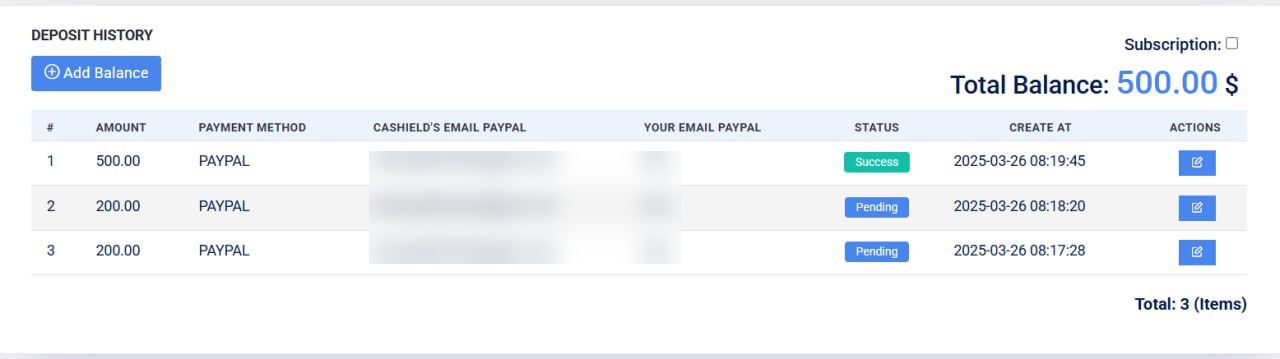
The List Deposit section provides an overview of your deposit history and tools to manage your account funds. At the top of this page, you’ll see a blue Add Balance button, and below it is the Deposit History table listing all your past deposits. Each row in the table represents a deposit transaction you have made, including details like the amount, payment method, associated PayPal emails, status, and the date it was created.
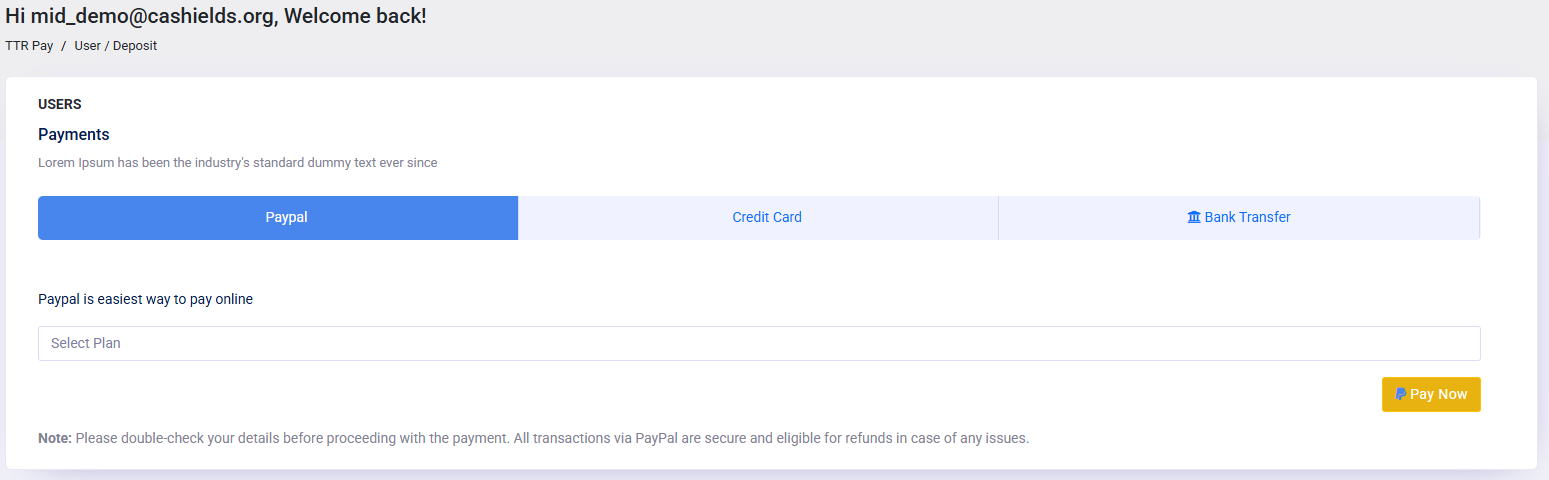
- Add Balance (button): Clicking Add Balance allows you to initiate a new deposit (to add funds to your account balance). When you click this button, you’ll typically be prompted to enter an amount and select a payment method (for example, PayPal or other available options). Follow the on-screen instructions in the deposit form to complete adding funds. After you submit a deposit request, a new entry will appear in your deposit history table, usually with a Pending status until the payment is confirmed.
- Deposit History Table: This table lists all your deposits in reverse chronological order (most recent first). It has several columns, each providing specific information:
- Amount – The amount of money you deposited for that entry (displayed in your account currency, e.g., USD). This lets you see how much was added in each deposit.
- Payment Method – The method you used to add the funds. Common methods might include PayPal, credit card, bank transfer, etc. In the example above, the deposit was made via PayPal.
- Cashield’s Email PayPal – The PayPal email account of the payment receiver (in this case, the TTR Pay system or its payment provider). For a PayPal deposit, this would typically be the email address to which you sent the money (the platform’s PayPal account).
- Your Email PayPal – The PayPal email account you used to send the deposit. This helps you confirm which of your PayPal accounts (or email addresses) the payment came from. In our example, it shows a PayPal sandbox email address used by the account.
- Status – The current status of the deposit. This indicates where the deposit is in the process. For example, Pending (like above) means the deposit is awaiting confirmation (the funds are not yet added to your balance), while an Success
 status means the deposit was successful and the funds are now in your account.
 - Created At – The date and time when you initiated the deposit request. This timestamp is useful for record-keeping, so you know exactly when you made each deposit. It follows this format YYYY-MM-DD HH:MM:SS (for example, “2025-02-09 07:59:37”).
- Actions – This is used for leaving a Note Settings to yourself regarding that particular transaction.
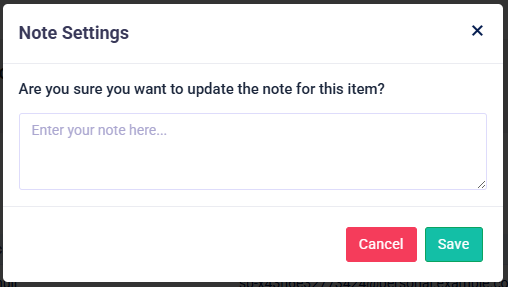
List Deposit Actions is primarily used by merchants to leave notes for themselves about that particular transaction. - Total Balance: This shows the total funds available in your TTR Pay account, meaning it is the sum Amount of every transaction displayed (for example, 500.00$ in the screenshot). It aggregates all your approved deposits (and subtracts any payouts or spending, if applicable). Notably, pending deposits are not included in this total until they are approved. For example, if you just initiated a $500 deposit and it’s still pending, your Total Balance will remain at your current balance until that deposit gets approved. Always refer to this number to know how much money you currently have available on the platform.
Deposit Statuses Meaning and Troubleshooting
Each deposit entry has a Status that lets you know the state of that deposit. Understanding these statuses will help you know if any action is needed from your side or if something is delayed. Here are the common status values and what they mean, along with tips for handling delays or issues:
 Pending: A “Pending” status means the deposit has been initiated but is not yet completed. The platform is waiting for the payment to be confirmed or processed. For instance, if you initiated a PayPal deposit, the transaction might be pending until TTR Pay receives confirmation from PayPal. It’s normal for a deposit to stay pending for a short period while the payment is being verified. What to do: Usually no immediate action is required; just wait for the system to update. However, if a deposit remains in Pending status for an unusually long time (e.g. longer than the typical processing time), you should double-check that you completed the payment on the payment provider’s side (for example, ensure that the PayPal transaction was successful). If you did complete the payment and it’s still pending after some time, you may want to contact TTR Pay support to investigate the delay.
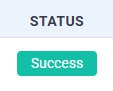 Success (Completed): An “Approved” status (sometimes labeled “Completed” or “Success”) indicates that your deposit was successful. The funds have been received and added to your account balance. When a deposit is approved, your Total Balance will update to include that amount. What to do: There’s nothing further you need to do for an approved deposit — you can now use those funds. This status is a confirmation that the money is available in your account.
(Note: You should always pay attention to the Status column and check for status updates regularly to understand what’s happening with each deposit.)
Additional Notices You Should Keep In Mind
In summary, the List Deposit section of your TTR Pay dashboard is your go-to place to track the money you’ve added to your account and see its status. Go to My Account > List Deposit, you can review all past deposits and ensure your account balance is up-to-date.
Keep the following tips in mind for a smooth experience:
- Double-check details when depositing: When you click Add Balance to make a new deposit, ensure you enter all information correctly (such as the amount and your PayPal email, if required). Typos or incorrect details can cause delays or require manual correction. For example, an incorrect PayPal email might mean the system can’t match your payment automatically, leaving the deposit in pending status.
- Monitor pending deposits: It’s normal for a deposit to be pending for a short time, but it shouldn’t remain pending indefinitely. If you’ve completed the payment on your end (e.g., submitted the PayPal transaction), the status should eventually update to Approved. If a deposit stays pending for a long time, try refreshing the page, and then consider contacting support to check on it.
- Use support resources if needed: If you’re unsure about a deposit status or encounter any issues (such as a deposit that appears stuck or an error like “Failed”), don’t hesitate to reach out for help. TTR Pay provides support channels — for instance, a “Need Help? Chat with Us” option is often available on the dashboard. The support team can assist with verifying payments, explaining any ‘null’ or error entries, and resolving issues so your deposit can be completed.
- Keep records of your transactions: After you initiate a deposit, you might receive a confirmation email or a reference number/receipt (especially for external payment methods like PayPal). Save that information. It serves as proof of payment and includes details that can speed up troubleshooting if something goes wrong.
You should now be able to confidently navigate the List Deposit page, understand your deposit history, and know what steps to take if something doesn’t look right. Managing your account balance becomes much easier when you know where to find all your deposit information.
Leave a Reply